
Products
Software
Hardware
Solutions
Industries
col
col
col
Products
Software
Hardware
Solutions
Industries
col
col
col
Products
Software
Hardware
Solutions
Industries
col
col
col
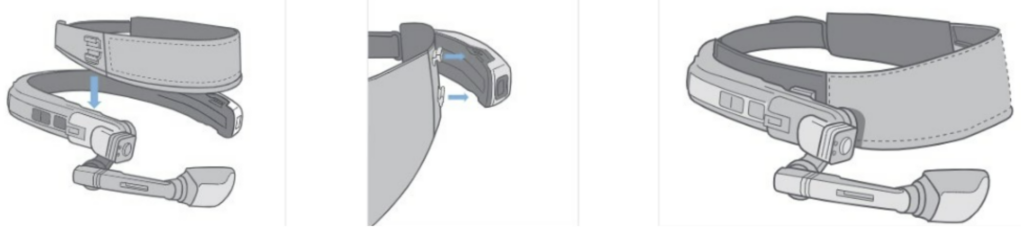
2. Mount the work headband
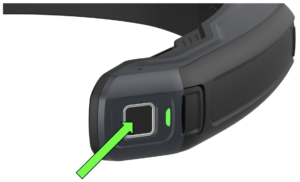
3. Turn on the smart glasses pressing the power button for 5 to 10 seconds until you see the screen turn on.
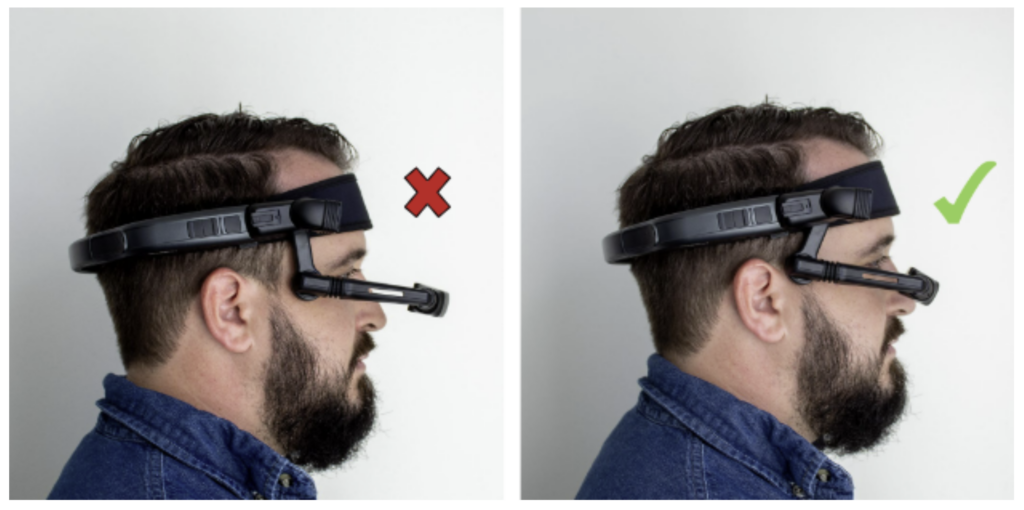
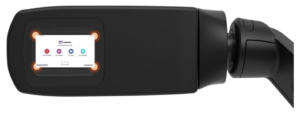
5.1. When you turn on the glasses you should see the home screen or have Remote Eye opened automatically.
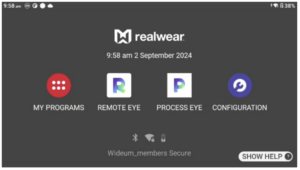
If you see the home screen, say “Remote Eye” to open the assistance software.
5.2. When you open Remote Eye you should be looking at a screen like this one. You are now ready to be called by an expert.
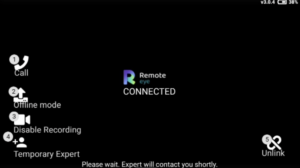
Contact the expert that was going to give you remote assistance if you see yourself in any of the last 2 scenarios.


