
Products
Software
Hardware
Solutions
Industries
col
col
col
Products
Software
Hardware
Solutions
Industries
col
col
col
Products
Software
Hardware
Solutions
Industries
col
col
col
Conectar las smartglasses RealWear a Internet
Usando el código QR del sitio web de RealWear:
1. Ve a https://realwear.setupmyhmt.com/configure/wifi
2. Rellena los datos de la conexión a Internet a la que quieres acceder y haz clic en “GENERATE BARCODE”.
Nota: Nota: El segundo campo pide el tipo de seguridad de tu red. En la gran mayoría de casos es la opción “WPA/WPA2 PSK”.
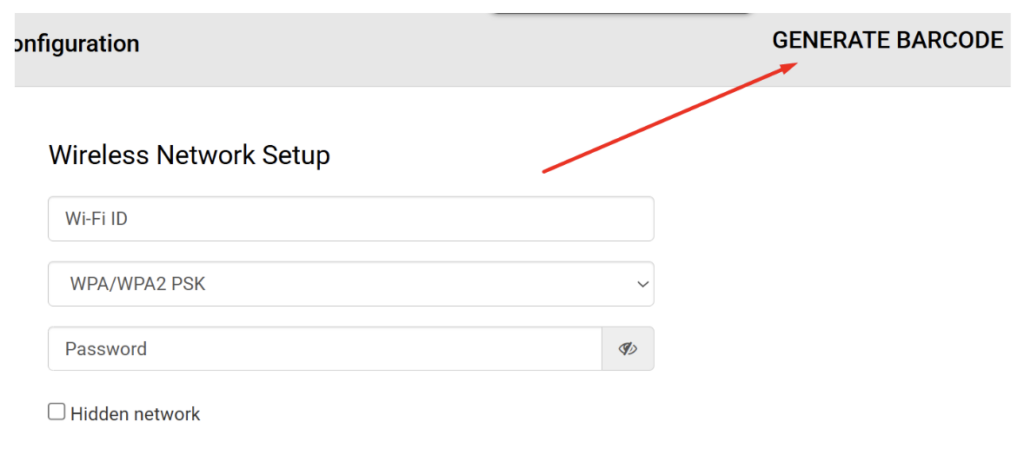
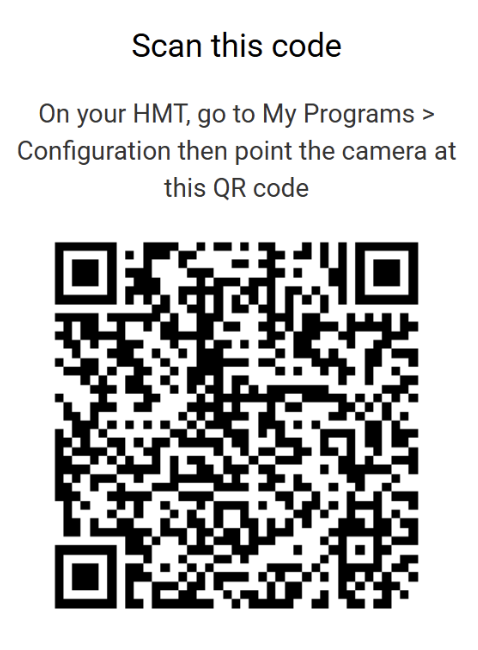
Esto generará un código QR que, al escanearlo con las smartglasses, conectará automáticamente a la red.
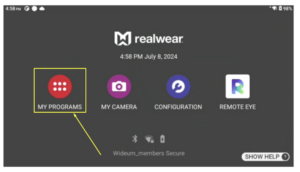
3. Enciende los smartglasses y ve al menú principal usando el comando de voz “Regresar inicio”. Luego, entra en “Mis programas”.
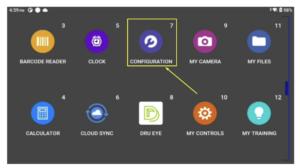
4. Mueve la cabeza horizontalmente para navegar por las opciones del menú. Di “Ajustes” para abrir el lector de QR.
5. Escanea el código QR y estarás conectado al Internet.
Conectar las smartglasses a Internet directamente desde las smartglasses:
1. Di ‘Mis programas’
2. Di ‘Configuración’
3. Di ‘Network & Internet’
4. Di ‘Internet’
5. Di “SELECCIONAR ELEMENTO #” y el número que aparece a la izquierda de la conexión a la que quieres conectarte, por ejemplo: “Seleccionar elemento 4”.
Para desplazarte hacia arriba o hacia abajo di “Página arriba” o “Página abajo”.
6. Introduce la contraseña deletreándola con las palabras que aparecen debajo de cada letra. Si quieres escribir “abc”, tienes que decir “alpha, bravo, charlie”.
Di “Mayúsculas”, “Número” o “Símbolo” para mostrar otros tipos de caracteres.
7. Cuando termines de introducir la contraseña, di “Aceptar” y luego “Conectar”.
Ahora deberías estar conectado a Internet.
8. Al encender los smartglasses deberías ver la pantalla de inicio o que Remote Eye se abre automáticamente.
Si ves la pantalla de inicio, di “Remote Eye” para abrir el software de asistencia.
9. Al abrir Remote Eye deberías ver una pantalla como esta. Ahora ya estás listo/a para que te llame un experto.
Si la pantalla muestra “Disconnected / Desconectado”, significa que las gafas no están conectadas a Internet.
Si la pantalla muestra 4 números en rojo, significa que las gafas no están vinculadas a una cuenta de experto. Envía el código de 4 dígitos al experto para que enlace tu dispositivo.


